 Edi Material Management Service Setup
| Document Version | v.1 |
|---|---|
| Document Last Updated | 10/2/24 |
| Software Version Documented | v.10.1.4 |
Task/Problem Overview
This document will go over how to setup EDI settings for customers using Material Management Service.
Setting up EDI Manager Site Settings
-
First thing you’ll have to do is setup the site settings within the EDI manager under the admin menu. Add a new site setting and fill out the info provided by MMS.

- Do not bother hitting “test connection” as it will always fail due to the fact that MMS does not send anything back to Savance so we will never receive anything!!
-
They will provide login info for the FTP information. However if they provide multiple FTP users you’re going to use the one for newedi user.
-
FTP Site: south.matmgt.com
-
FTP Port: 21
-
FTP User: newedi
-
FTP Pass: Refer to MMS for password
-
Sending Schedule: Sending EDI Schedule
-
Receiving Folder: 997
-
Receiving Schedule: None
-
-
You only need to have Enable Passive FTP checked off. Everything else can be unchecked.
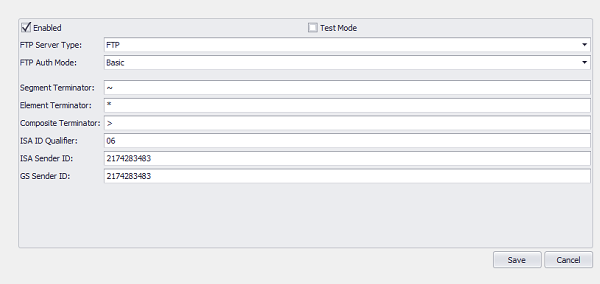
-
Make sure to check off Test Mode on this side if testing with MMS!
-
FTP Server Type: FTP
-
FTP Auth Mode: Basic
-
Segment Terminator: ~
-
Element Terminator: *
-
Composite Terminator: >
-
ISA ID Qualifier: MMS will provide this info. This would be the Savance Customers Qualifier
-
ISA Sender ID: MMS will provide this info. This would be the Savance Customers ISA ID
-
GS Sender ID: MMS will provide this info. This would be the Savance Customers GS ID
-
Setting up Customer Account
-
Now that the MMS Site settings are complete it’s time to do the settings for the individual customers that will be sending their orders and invoices to MMS. Go to the Accounts Tab within the EDI manager.

-
Click on the green + symbol at the bottom of the window. From here you’ll then select and find which Customer Account you want to add. Once you add them fill out this info:
-
Conduit: Choose the MMS Site you just completed in step 1.
-
ISA ID: This is the ID of our Savance Customer that MMS provides.
-
GS ID: This is the ID of the Customer within Savance that MMS provides.
-
Qualifier: MMS will provide this.
-
Test ISA ID: This is the ID of our Savance Customer that MMS provides.
-
Test GS ID: Can use 9999999999 as the test ID for GS.
-
Check off the following boxes:
-
Send 997 Confirmation
-
Send 855 for all orders
-
850 POs
-
855 PO ACK
-
810 Invoice
-
-
Check off EDI Test Mode when testing with MMS.
-
Modifying Document Segments
-
Once you’ve added a Customer in the accounts tab the last thing you’ll do is modify some of the document segments to include things that MMS requires that’s not default. You only need to worry about 855 PO ACK and 810 Invoice.
-
Use the arrows in the middle to move them from the left to the right. The following segments are necessary for MMS:
-
855 PO ACK:
-
Reference Identifier Order Number (BAK_RF_ON)
-
Selling Party (N1_SE)
-
Ship To (N1_ST)
-
Buying Party (N1_BY)
-
-
810 Invoice
-
U.P.C (1-5-5) (IT1_UI)
-
Part Number (Overrides PID-05: Description) (PID_05)
-
Terms of Sale (ITD)
-
Tax Information (TXI)
-
-
-
-
Hit save once complete.
Adding Delivery Methods to Customer Accounts
-
The last step is to make sure on the customers accounts is that there’s a contact setup for email: Invoice1@materialmanagementinc.com They require a PDF email copied sent to them not just the 810 Invoice file.
-
Once the contact is added make sure it’s selected within the delivery methods of the customer account for email.

SETUP IS NOW COMPLETE. TEST WITH MMS TO CONFIRM.